 JawAtlas
How to
Save and replay moments in a case
After this page you will be able to bookmark a view, mark the structure you mean, write a one-line caption, and step through your bookmarks like slides when you present a case to a classmate or a group.
What a moment is
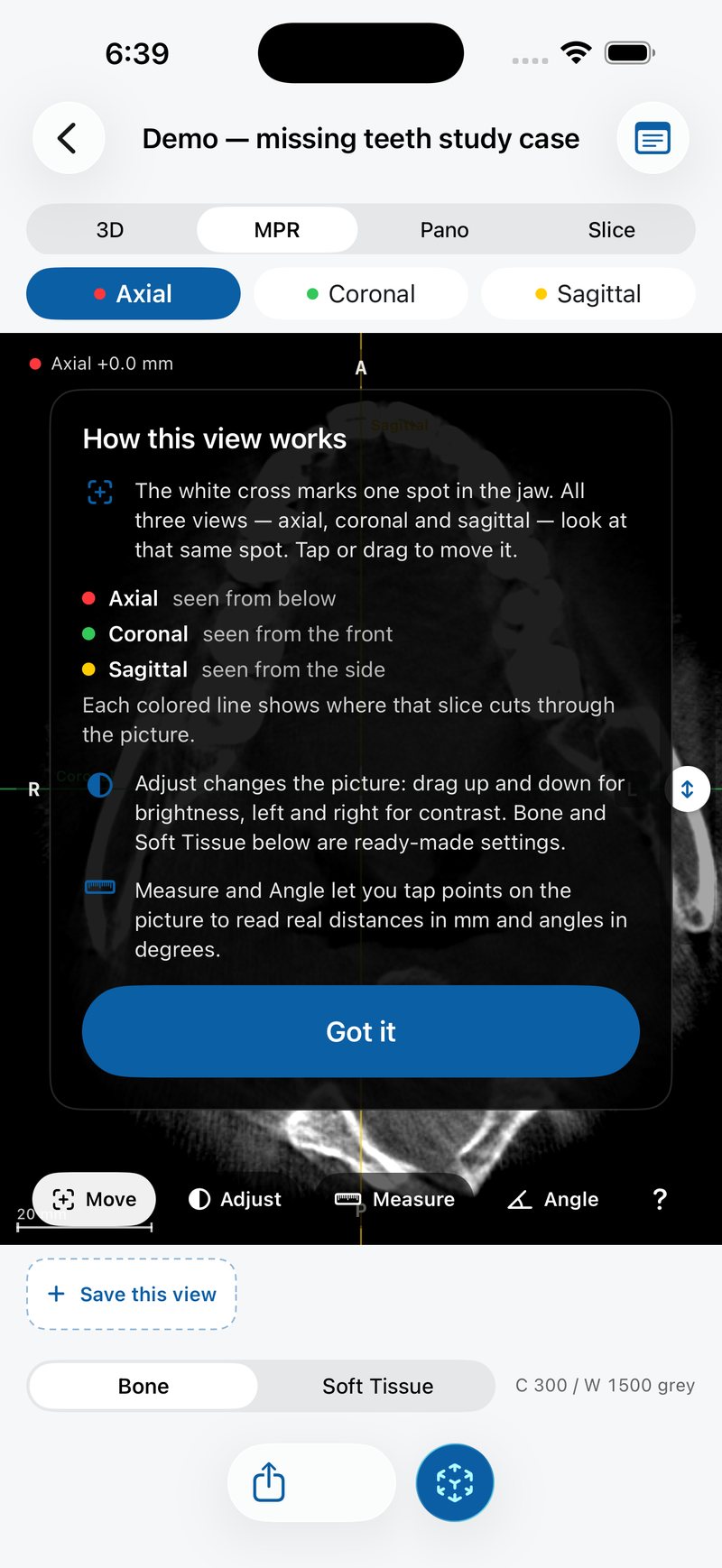
A moment is a saved state of the viewer: which stage you were in, the window preset, where the cut was and how it was tilted, panned and zoomed, and for 3D the camera position. Moments sit in a strip above the window bar and travel with the case when you share it. They are the building blocks of teaching cases and of the PDF summary described on Share a case and export a PDF.
Steps
- Get the view right. In any stage, navigate to the structure. For a 2D moment the Slice stage is the most flexible: drag to turn the cut, use the bar on the right to move through the jaw, and pinch to zoom.
- Tap "Save this view". It is the dashed button at the left end of the strip. An alert asks for a title and suggests one like "Moment 3". Give it a short name you will recognise, then tap "Save". The new card appears in the strip and becomes the active moment.
- Draw a mark. In the Slice stage, tap the pencil button at the top right of the picture ("Mark the picture"). The hint changes to "Draw on the picture to mark it". Draw with your finger; each stroke is stored in millimetres on the cut, so it stays on the anatomy when you zoom. "Undo last mark" and "Clear marks" appear while marking. Tap the pencil again to stop.
- Add a caption. Long-press the moment card and choose "Edit caption". The field asks "What should the viewer learn here?" Write one plain sentence; it is shown over the picture whenever the moment is active.
- Replay. Tap any card to jump to that moment; the viewer animates to the stored cut or camera. Work through the strip from left to right and you have a slide show. Long-press a card for "Rename" or "Delete".
- Write case notes. Tap the note icon at the top right of the case. The "Case Notes" sheet is for anything the next reader should know: the anatomy to look for, the question the case answers. Tap "Save".
Tips for good moments
Save the overview first. A 3D moment with the Teeth preset, then an axial MPR moment at root level, then the detailed cuts. Viewers orient themselves faster when the strip goes from whole to part; see How to read a CBCT scan for a reading order that works as a strip.
Mark less than you think. One stroke around the canal says more than five arrows. Captions carry the teaching point, and they are limited to a sentence on purpose.
If you draw a mark without an active moment, JawAtlas creates one for you called "Marked view" so the stroke has somewhere to live. Rename it afterwards.
If it does not work
The pencil button is missing. You are not in the Slice stage. Moments from MPR and Pano replay in the Slice stage; tap the moment card first, and the button appears at the top right.
My marks vanished. Marks belong to the cut they were drawn on. If you turned the cut away, the strokes are hidden until you tap the moment again; they are not lost.
The caption is not shown. Captions appear only while that moment is active. Tap the card.
I saved from the Pano stage and it opened in Slice. That is expected: the moment stores the perpendicular cross-section as a free cut, so you can tilt it and draw marks on it there.
For the panoramic workflow that produces those cross-sections, see Trace the dental arch.
Questions students ask
What exactly does a moment save?
The stage (3D or a 2D cut), the window preset, the exact plane position, tilt, pan and zoom, and the 3D camera. Tapping the moment restores all of that. Marks drawn on a Slice view are stored with the moment and reappear when you return to the same cut.
Can I draw a mark on an MPR pane?
Marks are drawn in the Slice stage. A moment saved from an MPR pane or from the Pano cross-section replays in the Slice stage at the same cut, so open the moment, tap the pencil button and draw there.
Are my moments and notes shared with the case?
Yes. Share Case packages the scan together with its moments, marks and notes, and the recipient sees the same strip. Notes are not included in the exported PDF summary; moments are, one per page.
JawAtlas is an education and training aid. It is not a medical device and must not be used for diagnosis, treatment planning or any clinical decision.
Last reviewed 2026-10-13