 JawAtlas
How to
Import a DICOM folder from the Files app
After this page you will be able to take a folder of CBCT slices that is already on your iPhone or iPad, or in iCloud Drive, and turn it into a case in the JawAtlas library.
Before you start
JawAtlas reads standard DICOM files. A series needs at least four slices, and the files must be uncompressed or losslessly compressed (Implicit or Explicit VR Little Endian, Deflated, RLE Lossless, or JPEG Lossless). Lossy JPEG, JPEG 2000 and JPEG-LS files are rejected per file with a clear message, so if your export offers a compression option, choose "uncompressed" or "lossless". See What is DICOM for the background.
The folder has to be reachable from the Files app: On My iPhone, On My iPad, iCloud Drive, or a third-party location that Files can browse. If the scan is on a Mac, AirDrop is usually faster than copying through Files.
Steps
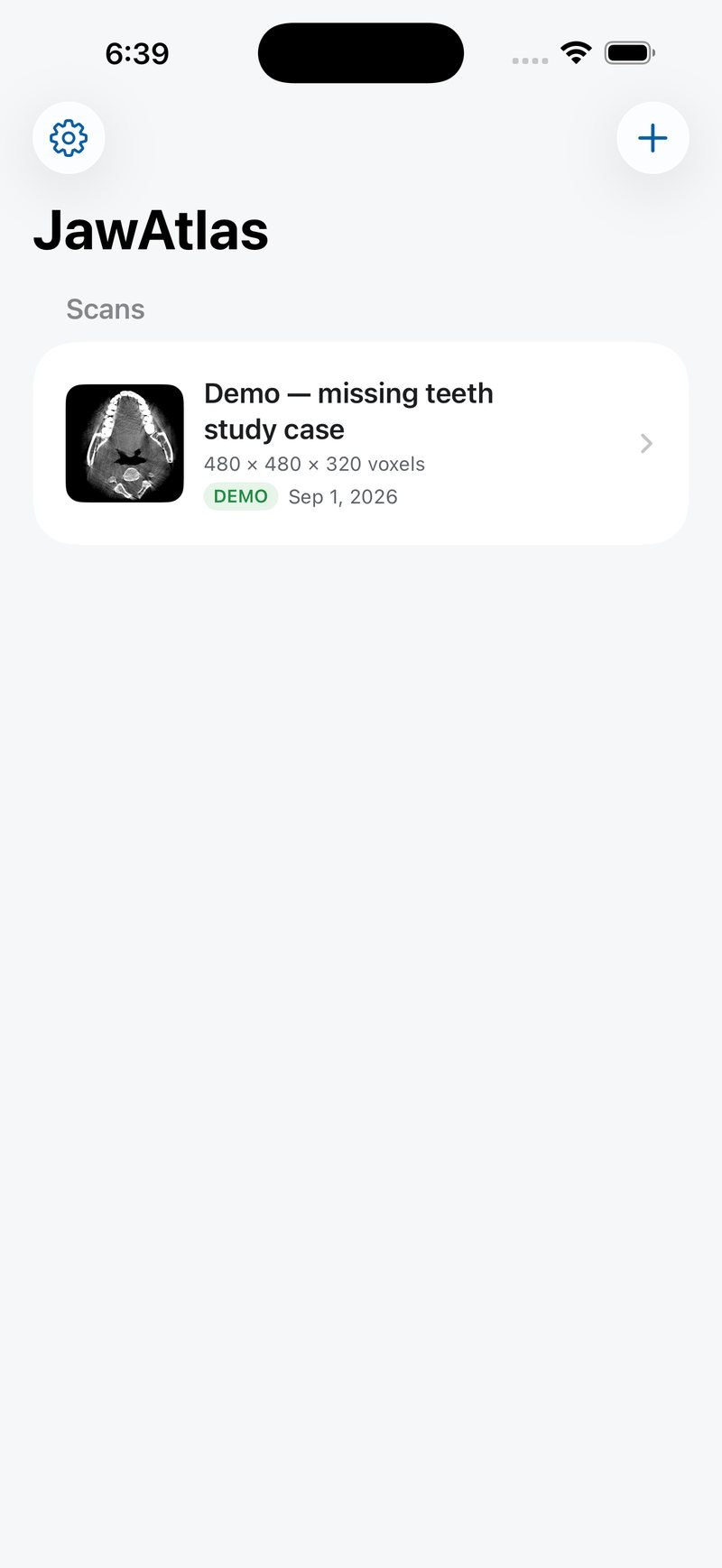
- Open JawAtlas and go to the library. This is the first screen, with the demo scan listed. Tap the plus button at the top right and choose "Import from Files".
- Select the DICOM folder. The iOS file picker opens. Navigate to the folder that holds the slices and tap it so it is highlighted, then confirm. You can select a whole folder or a set of individual files; multiple selection is allowed.
- Watch the "Import Scan" sheet. A progress bar runs through the phases Reading, Validating, Converting and Verifying, with a slice count and an elapsed timer below it. Tap "Cancel" at any time to stop; nothing is saved until the import finishes.
- Choose a series if asked. If the folder contains more than one series, a "Choose a Series" list appears. Each entry shows the dimensions and voxel spacing, for example "480 × 480 × 320 · 0.266 × 0.266 × 0.252 mm". The best candidate carries a green RECOMMENDED tag; an entry with missing slices says "Contains gaps". Tap the one you want.
- Answer the gap warning if it appears. When the chosen series has missing slices, a dialog titled "Series has gaps" explains that measurements from such a series may be less reliable. Tap "Proceed Anyway" to continue or "Cancel" to stop.
- Answer the duplicate prompt if it appears. If the same series is already in your library, the sheet says "This scan is already in your library" and names the existing case. "Skip" opens the existing case; "Import as Copy" creates a second, independent copy.
- Open the case. On success you see the new case label and a short note such as "320 slices imported". Tap "Open now" to go straight to the viewer, or "Back to Library" to return to the list.
The JawAtlas folder in Files
JawAtlas exposes its Documents folder to the Files app. Open Files, go to On My iPhone or On My iPad, and you will find a JawAtlas folder. Copy DICOM folders into it from anywhere, then import them with "Import from Files" as above. Nothing in that folder is read until you import it, and imported cases are stored separately in the app's own format, so deleting the source folder afterwards is safe.
What the importer keeps
The importer reads only a whitelist of technical tags: geometry, spacing, orientation cosines, rescale values and pixel data. Patient name, ID, birth date and similar fields are never written to storage. That is why the case label is built from the scan itself, for example "Axial CBCT 480×480×320", and why you can rename it freely. The details are on Offline and private.
If it does not work
"No scan slices could be read." The folder contained no readable DICOM files. Check that you selected the folder with the slices themselves, not a parent folder of viewer software or a DICOMDIR alone.
"This series has only 2 usable slices; at least 4 are needed to build a volume." The export is incomplete, or most files used a compression JawAtlas rejects. Re-export as uncompressed DICOM.
"The slices in this series do not fit together." Slices with different orientations or inconsistent spacing were mixed in one folder. Export each series into its own folder and import them one at a time.
"That selection could not be read." The Files location refused access, which can happen with some cloud providers. Copy the folder into the JawAtlas folder first, then import from there.
To practise without importing anything, use the bundled demo scan. Once a case is open, How to read a CBCT scan is the next step.
Questions students ask
Why does JawAtlas ask me to choose a series?
A CBCT export often contains more than one DICOM series, for example an original acquisition and a derived reformat. JawAtlas lists each one with its dimensions and voxel spacing and tags the best candidate RECOMMENDED. Pick the original series unless you have a reason not to.
What does the gap warning mean during import?
The importer sorts slices by their physical position and noticed that some are missing. You can still import with Proceed Anyway, but the app warns that measurements from a series with missing slices may be less reliable.
Can I put DICOM files into the JawAtlas folder directly?
Yes. JawAtlas has its own folder inside On My iPhone or On My iPad in the Files app. Copy a DICOM folder there, then use Import from Files and select it. Nothing is uploaded; the files stay on the device.
JawAtlas is an education and training aid. It is not a medical device and must not be used for diagnosis, treatment planning or any clinical decision.
Last reviewed 2026-10-13